> For the complete documentation index, see [llms.txt](https://docs.macrocosmos.ai/llms.txt). Markdown versions of documentation pages are available by appending `.md` to page URLs; this page is available as [Markdown](https://docs.macrocosmos.ai/product-and-services/tah/tah-user-guide.md).
# TAH User Guide
Plug in to power decentralised AI model training
The Training at Home (TAH) application allows you to connect and partake in our decentralized AI training platform [IOTA](/subnets/subnet-9-iota.md). You can plug in any hardware you have access to and earn rewards for powering decentralized AI model training.
## Installation
To start training at home, visit and click "Download" in the Train at Home section. Currently TAH only supports MacOS, with Linux support coming soon. Look at [Hardware & OS Requirements](/product-and-services/tah/hardware-requirements.md) for more details.
If you already have access, you can double click a `.dmg` file to install the app.
Video below demonstrates installation process:
{% embed url="" %}
## Operating TAH
Once the app is installed you should be able to see the main dashboard:

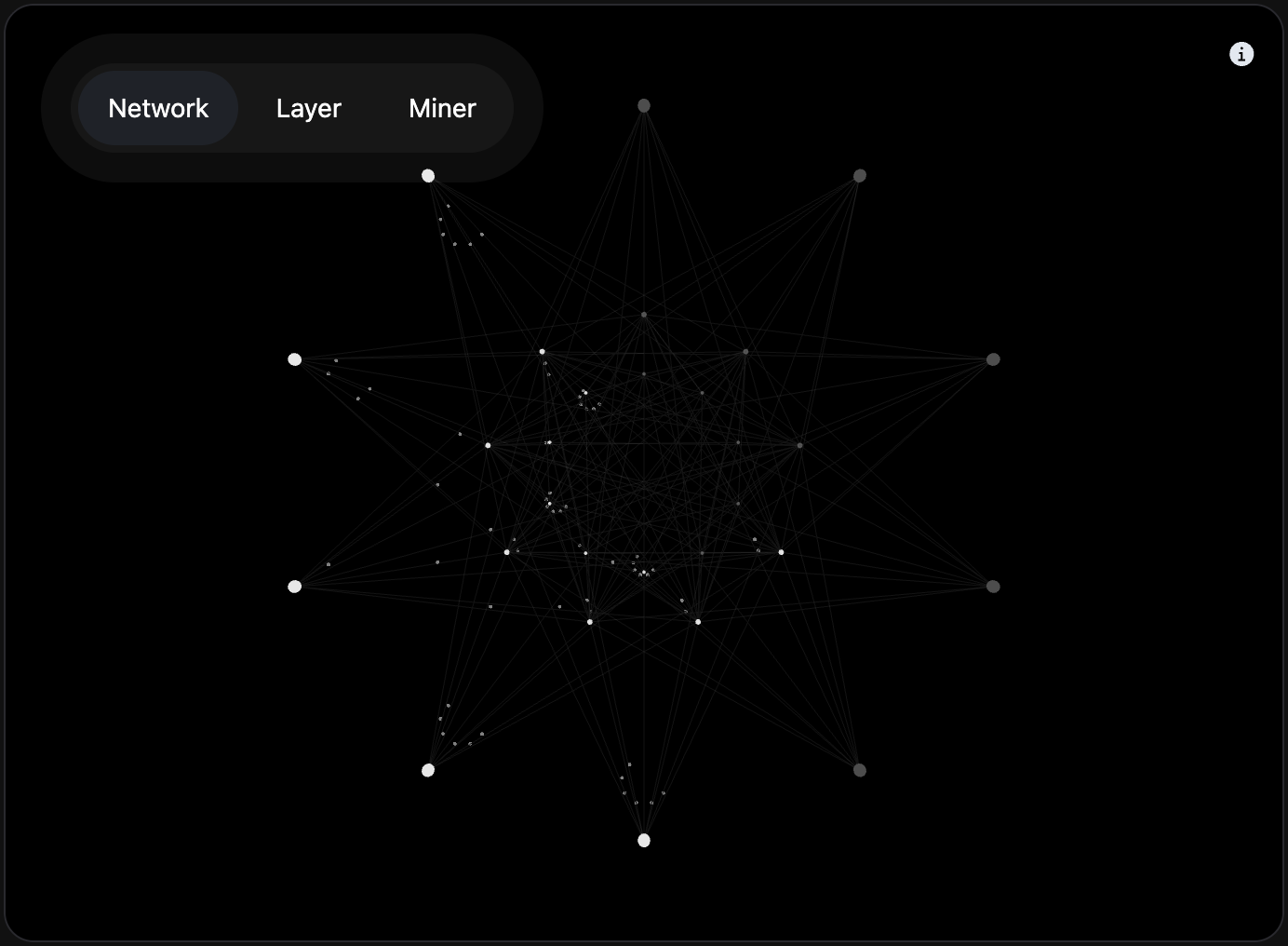
You’ll see metrics for your model, and in the center there will be a visualization of all the other participants in the training.
#### Main controls (top right of the screen)
* **Start training**: begins contributing your GPU/CPU to the current run. Click again to stop/exit the run.
* **Connect**: optionally paste your wallet coldkey to receive rewards to that address. You can train without connecting; if you connect later, rewards accrue to the provided coldkey from that point forward.
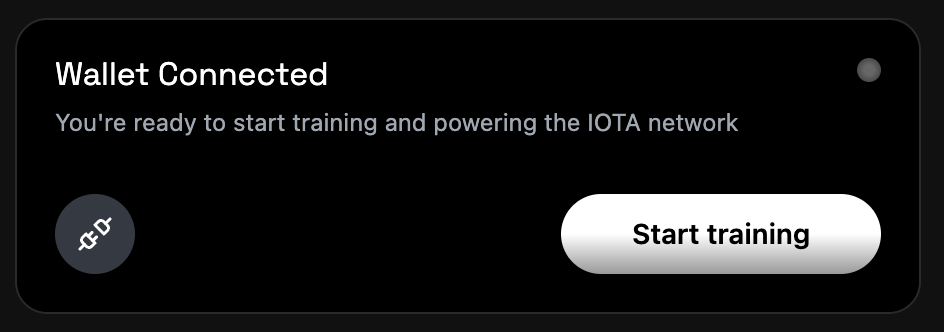
* **Status pill**: shows whether your hardware is ready (e.g., “Connected • Your GPU is ready to contribute”). Resolve any warnings before starting.
#### Start a session
1. Launch the app and wait for the status pill to read **Connected**.
2. (Optional) Click **Connect**, paste your wallet coldkey, and save.
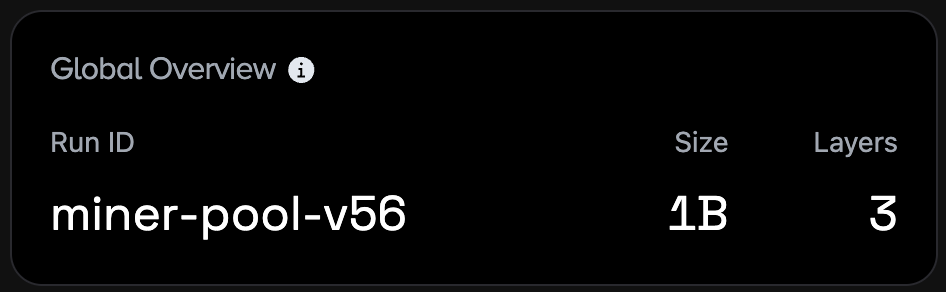
3. Click **Start training**. The run ID, model size, and layer count populate in the right panel; progress and tokens/hour graphs begin updating.
4. To stop, click **Start training** again (it toggles off) or quit the app.
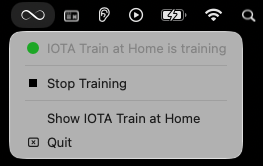
5. A TAH tray icon is also available that allows you to stop or start training and to quit the app:
#### Monitor while training
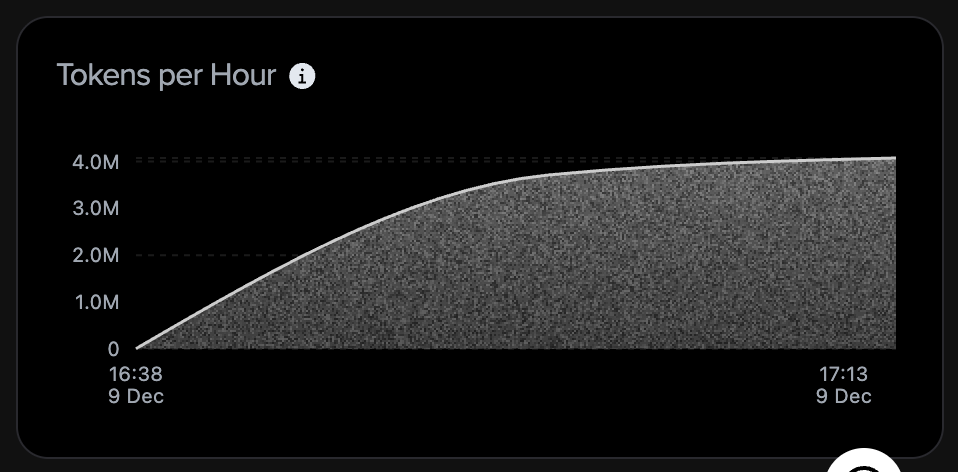
* **Run panel**: shows run ID, model size, layers, cumulative progress, and tokens/hour graph.
***
* **Network view**: visualizes peers and traffic; switch tabs (Network/Layer/Miner) for different views.
***
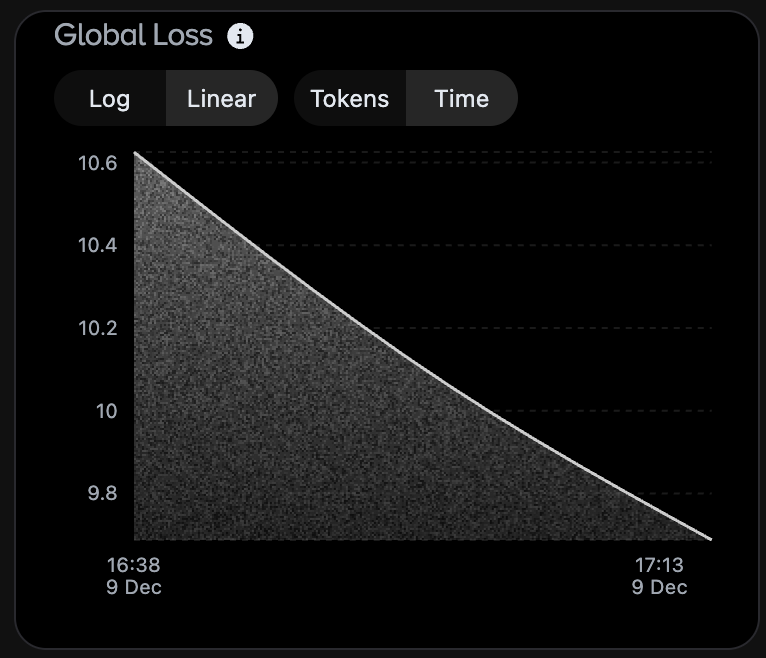
* **Loss chart**: training loss over time; toggle Log/Linear and tokens/time axes.
***
* **Run Log** (bottom right): per-epoch/step logs; lock icon indicates read-only when idle.
#### Resource behavior
* The app uses available GPU/CPU once training starts. If you need to pause, toggle **Start training** off.
* Keep the laptop powered and on a stable network for steady rewards. Thermal throttling may reduce contribution; use a cooler or lower-power profile if needed.
#### Updates
* If an update is available, install the latest build before starting a new session for compatibility with the active run.
* If you do not update, you will not be able to join the current run.
## Rewards
Earnings will be calculated and paid as described below.
#### How Rewards Are Calculated
Rewards are primarily based on:
* The amount of tokens you contribute during training.
* How many times you contribute your model weights back to the network.
* Additional factors such as uptime, quality, and current network parameters.
Note: Exact weighting can evolve as the system updates.
#### Payout Cadence
* Payouts occur approximately every 24 hours; this window may be extended in the future.
* Minimum payout is subject to a variable network threshold (approximately 0.4 alpha currently). Balances below the threshold roll over to the next payout. For details see the [FAQs](/product-and-services/tah/faqs.md) "Earnings and Payouts" section.
* Payouts may be frozen if the active run is not improving. For details see the [FAQs](/product-and-services/tah/faqs.md) "Earnings and Payouts" section.
* Network transfer costs are deducted from the amount you receive.
* To receive payouts, optionally connect a wallet by pasting your public coldkey (via the **Connect** button in the app). If you don’t connect, training still runs but rewards won’t be delivered to you; unconnected earnings are not paid retroactively.
#### Viewing Earnings
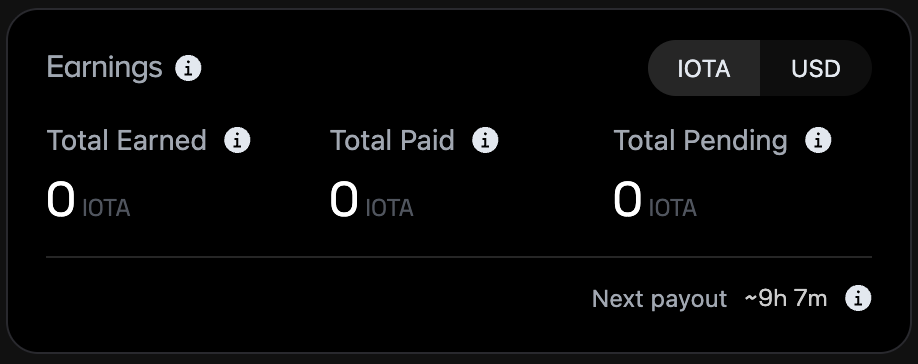
* In the app, click the **Miner** button (top left) to view your current earnings and contribution stats.
* *Total Earned*: Total amount credited to you, including both completed and pending payments.
* *Total Paid:* The amount paid to your wallet.
* *Total Pending:* Pending amount credited to you, but not yet paid.
## Accessing Log data for T\@H
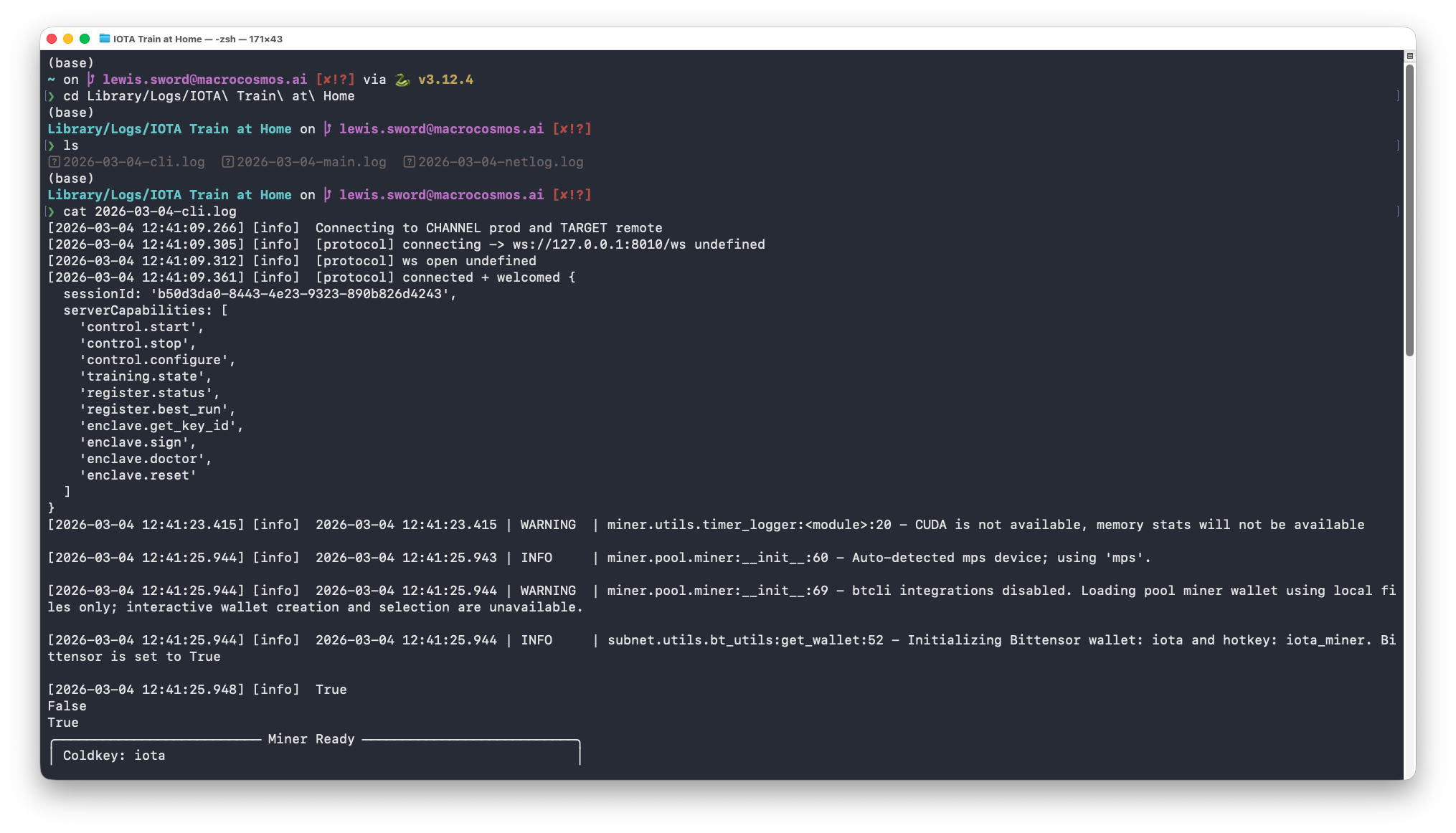
To document how the Train at Home app is running, operation logs are stored on your computer. You can access these via the following steps:
1. Open the Terminal app.
2. Navigate to the T\@H logging directory by typing `cd ~/Library/Logs/IOTA\ Train\ at\ Home` in the Terminal window, then press "enter".
3. Type `ls` and press "enter". This will show you your current log files. The file which provides diagnostic data on your T\@H activity is named `YYYY-MM-DD-cli.log`.
4. Choose the relevant date and open the file by typing `cat YYYY-MM-DD-cli.log` and pressing "enter". This will show the file contents in the terminal, allowing you to scroll through the T\@H events.
5. You can copy this log to another directory using `cp YYYY-MM-DD-cli.log /Users//Documents/logs` for example.
Commands used to access the T@H logs, with a print out of initial logs
#### Taxes & Compliance
* You are responsible for complying with local tax and regulatory requirements related to rewards.
{% columns %}
{% column %}
For more questions use [FAQs](/product-and-services/tah/faqs.md)
{% endcolumn %}
{% column %}
If you have any issues use [TAH Support](broken://pages/sOuXmk7Tjf1tKjUMyPCT)
{% endcolumn %}
{% endcolumns %}