# Apex CLI
The Apex CLI is a miner's interface with the subnet: linking wallets, submitting competition solutions, and viewing the dashboard. The dashboard contains all miner submissions to past and current competitions - use it to view others' code submissions and logs to compare your individual performance against the subnet.
To use the CLI you must have a [registered wallet on subnet 1.](https://docs.learnbittensor.org/miners#miner-registration)
### Setup
Before using the Apex CLI, make sure you have ran `./setup.sh`. For further instructions, see the [mining docs](https://docs.macrocosmos.ai/subnets/subnet-1-apex/subnet-1-base-miner-setup).
* Make sure you have activated your `.venv` prior to using the CLI.
* `source .venv/bin/activate`
### Link Wallet
Link your registered wallet with the CLI - required for most CLI commands:
`apex link`
This will prompt you to enter your Bittensor wallet location, which defaults to the default Bittensor wallet path: `/Users/{USERNAME}/.bittensor/wallets` .
* To select the default wallet location, press *ENTER/RETURN*.
* For custom wallet locations, enter the path from the root directory.
Then, use the arrow keys to select your registered coldkey and hotkey from the list provided.
NOTE: Some previously created wallets using earlier versions of btcli may not a have a private key configured. If this is the case, regenerate this hotkey before linking.
### View Competitions
#### To view the currently active competition:
`apex competitions`
This will return a list of all active competitions and their associated competition IDs.
#### To view competitions and their status in detail:
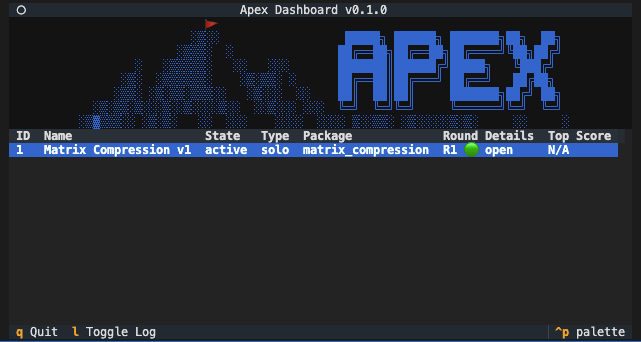
`apex dashboard`
Example Output:
Competition 1, Round 1
### View Submissions
To view a submission, first open the dashboard `apex dashboard` and press *ENTER/RETUR*N when hovering the competition of interest.
Your own submissions will be viewable immediately, other's submissions will be viewable after a delay.
### Submit a Solution
`apex submit`
This will prompt you to enter the file path to your solution path and competition ID.
Or, in one line:
```
apex submit -c
```
* View the current \ and \ via the dashboard.
* Submissions are limited to **4 submissions per day,** **per hotkey**.